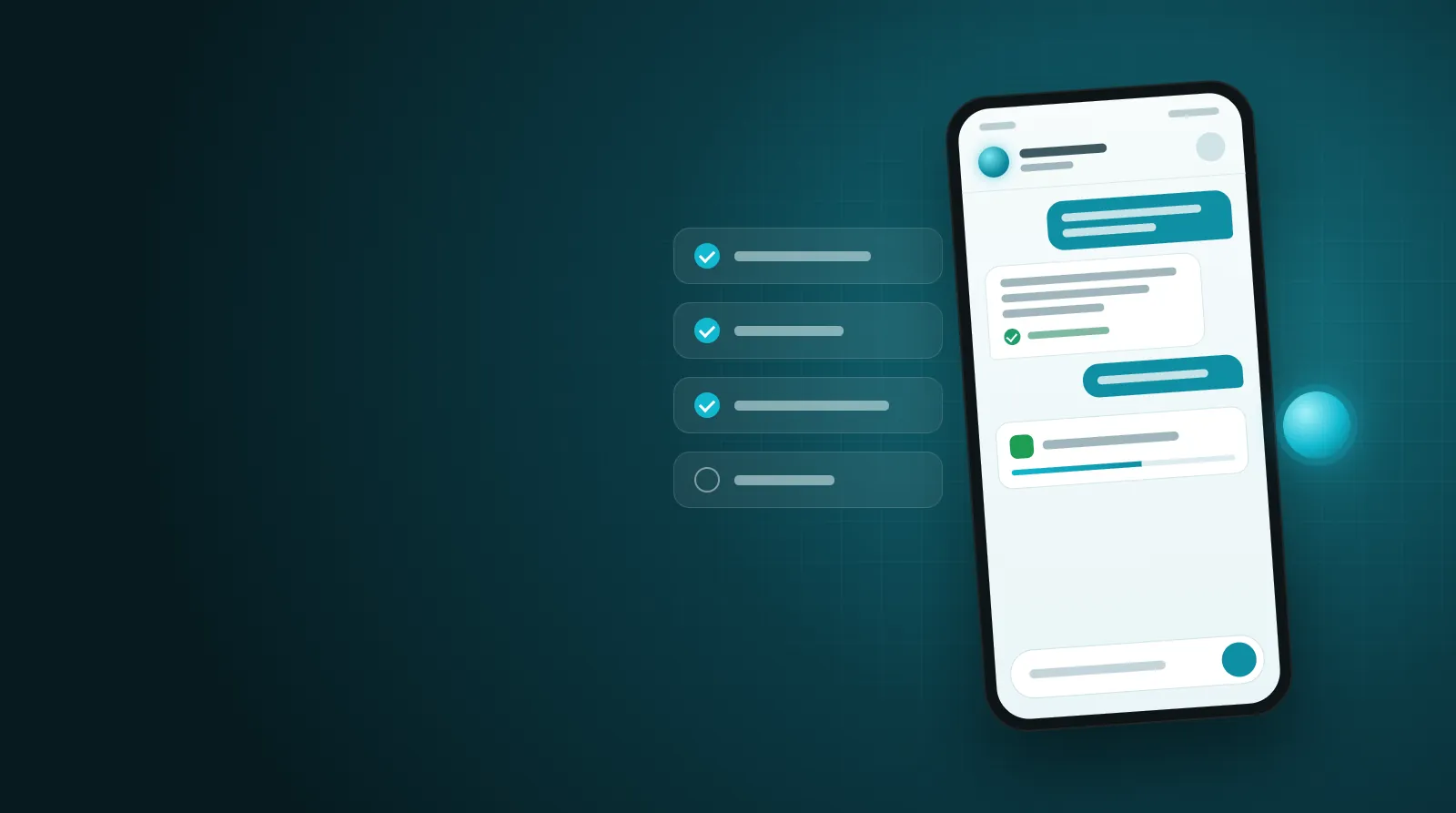
Autowhat AI Agent does tasks on your phone the way you would: it opens the app, reads the screen, taps and types. This guide is for your first tasks with Autowhat AI Agent, the AI agent that uses your apps: what to ask, what you see while it works, when it stops to ask you, and every way to stop it. It also explains the floating button, which lets you give a task from inside any app.
Before you start
Finish the quick start first. Two switches must be on: “Use your screen” and “Read notifications”. Check them in You › Settings › Phone access (You is your picture at the top right of Chats and the Dashboard). Both should say On.
Where can I give Autowhat AI Agent a task?
In three places. All tasks go into one queue, one at a time, and every task is kept in the “Tasks” tab with a word that says where it came from.
Where
How
The Tasks tab shows
The Chats tab, in the app
Type the task, or tap the mic and say it
In the app
The floating button, over any app
Tap the round orb and type, or press and hold it to speak
Floating button
WhatsApp
Message the WhatsApp on the Autowhat AI Agent phone from your own number (WhatsApp guide)
WhatsApp
How do I give Autowhat AI Agent my first task?
Use the Chats tab for the first few tasks, so you can see everything it does.
Open the Chats tab
Open Autowhat AI Agent. It opens on the Dashboard. Tap “Chats” in the bar at the bottom.
What you will see
A new chat says “What should I do?” and “Type it, or tap the mic and say it.” Below are three example tasks you can tap. At the top you see the name Autowhat AI Agent with one status word under it. “Ready” means it can take a task.
Type or say the task
Tap the box that says “Tell it what to do” and type the task in your own language. The round button next to the box turns into “Send”. Tap it.
To speak instead, leave the box empty and tap the round mic button. The first time, Android asks to allow the microphone: allow it. The box then says “Listening… tap to finish”. Speak, then tap the button or simply stop talking. It listens for up to 20 seconds. Your words land in the box, so you can fix them. Nothing is sent until you tap Send.
It replies in the language and script you write in. The mic and the spoken voice follow the app's language outside India and start on Hinglish in India. To change that, open You › Settings › Language and voice and pick Hinglish, Hindi, English or Phone language.
Watch it work
Autowhat AI Agent opens the app it needs and you see it tapping and typing on your screen. Its reply starts as one live line that changes as it goes: “Thinking”, then lines such as “Step 3 · Opening WhatsApp”, “Looking at the screen” or Tapping “Send”. The status word changes to “Working”, and the floating button shows the step too. While a task runs, the round button in Chats is “Stop”.
You can still type while it works. A message about the same task, such as a correction or an answer, goes to it straight away. A new request waits its turn and shows “Waiting”. Small things that do not need the screen may run beside it, in the background.
Answer if it asks you something
Sometimes it needs a detail, such as which of two contacts you meant, or your OK before a payment. It asks where its answers go: in the chat, or on WhatsApp if the task came from WhatsApp and you chose WhatsApp for answers. Reply in the same place, for example “yes, pay” or “no, leave it”.
Read the answer
When it finishes, the live line becomes its answer, with a line under it such as “Done in 42 s · 6 steps”. Tap that line or “Show steps” to see every step. Other endings are “Partly done”, “Stopped” and “Didn't finish”, with “Try again”. If you were in another app, a notification brings you the answer.
Every task is also kept in the “Tasks” tab. Tap a row to see its answer, its steps and “Run again”.
What are good first tasks to try?
Start with small tasks you can check yourself. Write in your own language; mixing in English works too. Use the names of real people in your contacts; the names below are only examples. Autowhat AI Agent works in apps you already have, so sign in to them yourself first. It never reads your passwords.
You say
What happens
Remind me to drink water at 6 pm
Sets a reminder. You find it in the Schedule tab.
कल सुबह 7 बजे दवाई की याद दिलाना
The same in Hindi: a reminder at 7 am tomorrow.
set alarm 6:30 am
Sets an alarm in your Clock app.
timer 5 min
Starts a five-minute timer.
add milk to grocery
Adds milk to a grocery list kept on your phone. Say “grocery list” to see it.
spent 450 on lunch
Notes the expense. Say “expenses today” for the day's list.
torch on
Turns on the torch. “torch off” turns it off.
Blinkit se doodh cart me daalo, pay mat karna
Opens Blinkit, adds milk to the cart and stops before paying.
wa Riya: running 10 minutes late
Sends that WhatsApp message to Riya and replies “WhatsApp sent to Riya: …”.
Order a phone charger on Amazon
Finds one in the Amazon app and is built to ask you before it taps Place order or Buy now.
status
A short report: battery, whether it can use your screen, and whether a task is running.
How do I work with Autowhat AI Agent day to day?
Give it the whole job in one message: who, what, when and how much. Then it can get on with the work instead of coming back with questions. These few words and rules keep you in charge. They work the same in Chats and on WhatsApp.
You want to
Send or do
What happens
End it now
stop, or the word for stop in one of more than 40 other languages, sent on its own
It stops the task running now, and any work it was doing in the background beside it. Your own requests that were waiting still run next. stop all tasks drops those too. More in how to stop.
Approve a payment
Reply yes to its question
It is built to ask before a Pay, Place order, Buy now, Subscribe or Send money button, and to tap it only after you say yes. See when it asks.
Other words, such as wait, are ordinary messages. They reach the task like any other message, so nothing is held for certain. If nothing more should happen, send stop.
Who it messages. Name the people you mean in the task. If you chose My contacts on the setup screen (the default), a safety rule keeps its messages to people in your contacts (see below).
Phone calls. It cannot talk on phone calls. If you say “call Riya” in the app or on the floating button, it dials and you talk yourself. A call asked for on WhatsApp is not dialled, because nobody is at the phone to talk.
When does Autowhat AI Agent stop and ask me?
Autowhat AI Agent is built to stop before anything that spends money or cannot be undone. Before it taps a button such as Pay, Place order, Buy now, Book now, Subscribe or Send money, it is built to ask you first and to tap it only after you say yes. The check reads the words on the button, so a button with an unusual label, such as an icon or “Continue”, may not trigger it. Delete account and Log out buttons need your yes too. It is also built not to tap Allow on Android's own permission pop-ups without your yes.
Your safety rules. Three of your setup answers become safety rules: ask before anything to do with money (not if you chose Everything under “What I may operate”), only message people in your contacts (if you chose My contacts), and quiet nights from 10 pm to 7 am (if you ticked “Don't disturb me at night”). They are turned on for you the first time you open Chats after setup. Remove any of them in You › Rules and personas.
Quick second checks.You › Settings › Advanced › Double-check risky steps is on by default. Its line says “A second opinion before payments and deletes”, but it does not add a stop before payments. It lets a second AI model answer quick yes/no questions during a task. The stop before Pay or Place order works with it on or off.
Things only you can do. A fingerprint, face unlock or a “prove you are human” puzzle (a CAPTCHA) needs you. It stops and tells you.
Requests from people you linked. If someone you linked asks your phone to do something, a card says “… wants your phone to:” with “Approve” and “Decline”. See the guide to linking phones.
Check the amount
When it asks before a payment, read the item and the amount it shows before you say yes. You are the last check.
How do I stop or pause a task?
There is always a quick way to stop. Here are all of them.
Where
What to do
What happens
Chats
Tap the round “Stop” button
Stops the task running now. The button is greyed out until it has stopped.
Floating button
Tap “Stop” on the pill
Stops the task running now. The pill says “Stopping it…”.
Floating button panel
Tap the pause icon, “Pause everything”
Stops everything and holds new tasks: “Everything stopped. New tasks wait until you resume.”
You sheet
Turn on “Pause Autowhat AI Agent”
The same as Pause everything: “Stops what it's doing. New tasks wait.”
Chat or WhatsApp
Send stop (or cancel, ruko, band karo, rok do, or the word for stop in one of more than 40 other languages)
Stops the task running now, and any work it was doing in the background beside it.
Chat or WhatsApp
Send stop all tasks (or band karo sab kaam)
Also drops your requests that were waiting.
Chat or WhatsApp
Send pause (or stop everything, sab band karo)
Pauses everything. Send resume (or chalu karo) to carry on: “Resumed: I'm taking tasks again.”
Notification
Tap “Stop” on “Paused · you touched the screen”
Stops that task.
After a plain stop, your own requests that were waiting still run next. The reply tells you: “Stopped. Next: …”. Scheduled tasks that were waiting behind it are dropped too, along with any rounds it scheduled for itself. The reply says how many, so you can set them again. To stop everything at once, use Pause everything.
While it is paused, the Chats banner says “Paused. New tasks wait.” with Resume. A task you type in Chats waits (“Paused. It will run when you resume.”). The floating panel does not take new tasks while paused: it says “Paused. Tap Resume first.” Tasks sent from WhatsApp while it is paused are not kept: it replies “I am paused. Send 'resume' to start me again.”
What happens if I touch the screen while it works?
Autowhat AI Agent steps back. Any touch on the screen while it is using an app pauses the task, so you can use your phone. A notification says “Paused · you touched the screen” with Resume and Stop, and the floating button shows a Resume button.
Tap Resume when you are done and it carries on. Sending it a message also resumes it, and it reads your message first. If you keep using the phone for more than 10 minutes, it gives up and says: “I stopped: you were using the phone, so I left it to you. Send it again when you want me to finish.”
Touches inside the Autowhat AI Agent app itself do not count. Opening the floating button's panel also makes a task wait, as explained below.
How do I use the floating button?
The floating button is a small round orb at the edge of your screen. It stays on top of other apps, so you can give a task, see what Autowhat AI Agent is doing and stop it without opening the app. It hides while Autowhat AI Agent itself is open, and comes back when you leave.
Allow “Show over other apps”
The button needs Android's permission to show over other apps. During setup, the “Keep it running” card has a “Floating button” row with “Allow”. Later, use You › Settings › Phone access › Show over other apps. Android opens its own page: turn on the switch for Autowhat AI Agent, then come back.
Greyed out?
On Android 15 and newer, this switch can be greyed out for apps installed from a file. Fix it with Allow restricted settings, as the accessibility guide explains.
Read it when nothing is running
At rest, the orb has a small pill beside it. The top line is your day so far, such as “3 done today · 1 waiting” or “All clear”. The second line is your next reminder, such as “5:30 pm · Pay electricity bill”, or “Tap the mic to talk”. Problems show in red here, for example “Battery 12%, plug in” or “Autowhat AI Agent can't use your phone yet.”
Tap the orb to open the panel
One tap opens a panel with a box that says “Tell it what to do” and one round button: a mic when the box is empty, Send when you have typed. Below it are “Now” (the task running, with Stop), the tasks waiting (with Move up, Move down and Remove), “Recent” (your last two tasks and their answers) and “Open Autowhat AI Agent”. The pause icon at the top is “Pause everything”. Press Back or tap outside the panel to close it.
While the panel is open, a running task waits, so you can read or reorder the queue. It shows “Paused while this panel is open” and carries on when you close the panel. If someone you linked is waiting for your OK, a tap opens the app on their request instead.
Press and hold to speak
Press and hold the orb, or tap the mic on the pill, and say the task. It shows “Listening…”, then “Heard: … Sending in 2 s. Tap the mic to cancel.” If you do nothing, it sends the task.
Allow the microphone in Chats first
The floating button does not ask for the microphone itself. If it only ever says “Didn't catch that. Tap the mic again.”, open Chats, tap the mic there once and allow the microphone.
Watch and stop a task from any app
While a task runs, the pill grows. It shows the step in plain words, the app's icon and name with the time so far, and a “Stop” button.
Move it out of the way
Drag it anywhere. When you let go, it docks to the nearest side of the screen.
It cannot be turned off
The floating button is the one control you always have while Autowhat AI Agent uses your phone, so the app keeps it on. If you ask it to hide, it replies that the button stays on and suggests dragging it to an edge. The only way to remove it is to turn off “Display over other apps” for Autowhat AI Agent, and then you also lose the Stop button over other apps.
Is anything different on my phone?
The floating button's permission has a different name on some phones. The Autowhat AI Agent app opens the right page for you; this table helps if you go there yourself.
Maker
Setting
Where it usually is
Pixel, Motorola, Nothing
Display over other apps
Settings › Apps › Special app access › Display over other apps
Samsung
Appear on top
Settings › Apps › ⋮ › Special access › Appear on top
Xiaomi, Redmi, POCO
Display over other apps
Easiest from Autowhat AI Agent: Phone access › Show over other apps; otherwise Display over other apps under Special permissions. “Display pop-up windows while running in the background” is a different setting (the app's Pop-up windows row)
OPPO, realme, OnePlus, vivo, iQOO
Display over other apps, sometimes Floating windows
Settings › Apps › Special app access
Names change between versions. If you cannot find it, type “over other apps” in the search box at the top of Settings.
Android 13 and newer: allow notifications when Autowhat AI Agent asks, once. Without them you do not see replies when the app is closed, or the “Paused · you touched the screen” notice.
Android 15 and newer, installed from a file: Display over other apps can be greyed out until you allow restricted settings.
If the floating button disappears after a while, your phone is closing Autowhat AI Agent in the background. Follow the guide for your phone:
“Autowhat AI Agent can't use your phone yet.” or the status “Needs phone access”: tap Turn on and switch on Use your screen (accessibility guide).
“Stopped. Turn it off and on again.” in Phone access: Android stopped the service. Tap Fix, turn Autowhat AI Agent off and on again in Accessibility.
The status says “Offline”: there is no internet. A task then ends with “I couldn't reach the server, so I stopped before starting. Send it again when you're online.”
“Paused. New tasks wait.” Tap Resume, or send resume.
“Didn't catch that. Try again.” after the mic: speak a little closer. If you see “Turn on the microphone in App info.”, tap Open and allow the microphone.
“Your plan has ended.” or “You've used this month's tasks.” See plans and billing.
“The AI couldn't handle this request, so I stopped. Try saying it more simply.” Say it again in shorter, plainer words.
“Something went wrong, so I stopped. Send it again or tell me what to change.” Send it again, or break it into smaller tasks.
Autowhat AI Agent can do most things you do with taps and typing: set reminders and alarms, send WhatsApp messages, add things to a cart, look things up and work in the apps you already use. It is built to stop and ask you before payments and other steps that cannot be undone.
Which languages can I use with Autowhat AI Agent?
Your own. Type or speak in your language, or mix it with English, and it replies in the language and script you wrote in. The app's screens are translated into 78 languages and regional variants, and on Android 13 and newer you can pick the app's language in Android Settings, Apps, Autowhat AI Agent, Language.
How do I stop an Autowhat AI Agent task?
Tap the round Stop button in Chats or Stop on the floating button, or send the word stop. To stop everything and hold new tasks, use Pause everything on the floating button or the Pause Autowhat AI Agent switch behind your picture.
Will Autowhat AI Agent pay without asking me?
It is built to stop and ask before buttons such as Pay, Place order, Buy now or Send money. The check reads the words on the button, so a button with an unusual label, such as an icon or “Continue”, may not trigger it. Read the item and the amount yourself before you say yes. It taps the button only after you say yes.
Will Autowhat AI Agent message or call someone I did not name?
It messages the people your task names. If you chose My contacts in setup (the default), a safety rule keeps its messages to people in your contacts; you can see it in You, Rules and personas. It cannot talk on phone calls; “call Riya” in the app only dials, and you talk yourself.
What does sending wait do?
Wait reaches the task as an ordinary message, so it does not hold anything for certain. To end a task, send stop; to stop everything and hold new tasks, send pause.
Where did the floating button go?
It hides while the Autowhat AI Agent app is open and comes back when you leave it. If it does not come back, check that Show over other apps is allowed in Settings, Phone access, and that your phone is not closing Autowhat AI Agent in the background.
Can I turn off the floating button?
No. It is the control you always have while Autowhat AI Agent uses your phone, so the app keeps it on. You can drag it to any edge. Turning off Display over other apps removes it, but then you also lose its Stop button.
Written for Autowhat AI Agent 1.0.1. Menu names differ by phone maker and Android version; the steps say where they usually are. Android is a trademark of Google LLC.