

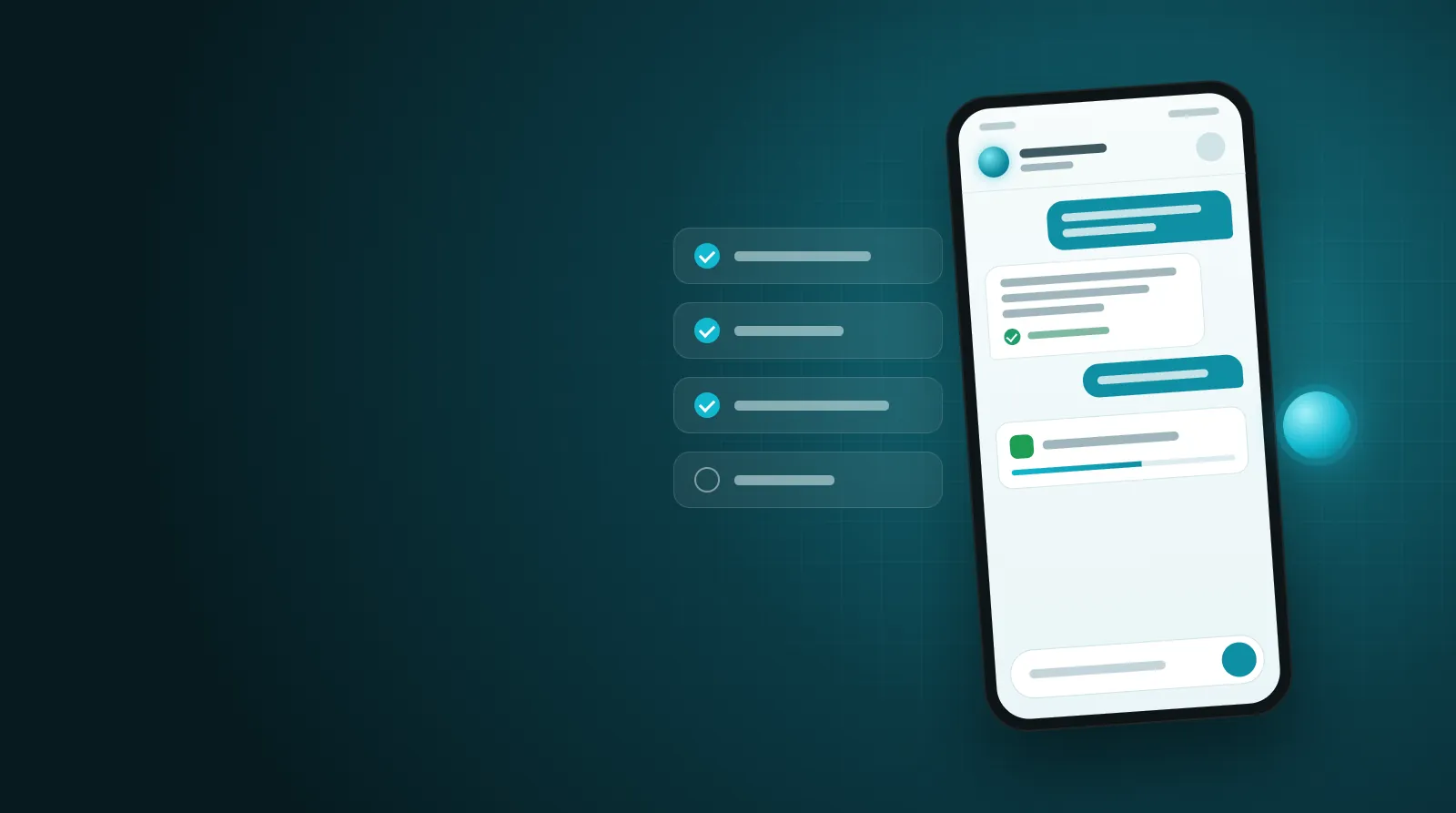
Use an AI agent for Android phones that works through Android's accessibility layer: it opens the app you name, taps and types as you would, and stops for your approval before anything paid. Autowhat AI Agent does this on Android 10 and newer (64-bit phones), with no root: type, speak or send the task on WhatsApp, follow the live step line, and approve the payment yourself.
It is 8:40 pm. The dal is on the stove, a reminder SMS about the electricity bill has been sitting unread since morning, and a colleague is waiting for the sales sheet. Each job is small. Each one means picking up the phone, finding the right app, typing a consumer number from memory and checking the amount twice. By the third one, the dal is catching at the bottom of the pan.
Our view is simple: automating phone tasks with AI is about handing over the boring taps while keeping the one tap that matters, the one that spends your money.
Five steps hand a phone task to an AI agent
- Set up the app and turn on accessibility. Install it, tap Get started and answer a few setup questions. Then allow it to use the screen (Android calls this Accessibility), read notifications and show over other apps. On Android 13 and newer the switch can look greyed out; our guide to accessibility and notification access shows the one-time fix.
- Name the app, the items and the payment method. Give the whole job in one message: who, what, when and how much. “Order 5 kg atta and 2 litres of milk from my usual grocery app, pay by UPI” leaves nothing to guess. Sign in to the apps yourself first; the agent never reads your passwords.
- Follow the live step line. The reply starts as one line that names the app and the step it is on, such as “Adding atta to cart”. You see it tapping and typing on your screen. The round button turns into Stop while the task runs.
- Confirm the exact amount and item. Before anything paid or irreversible, it shows you the amount and the item and waits. Reply “yes, pay” or “no, leave it”.
- Find it in your Tasks list. When it finishes, the line folds into the answer with the time taken and the number of steps. Every task is kept in Tasks, with where it came from, how long it took and how it ended.
Accessibility lets an agent use the apps you already have
Accessibility is the Android service that lets an app read what is on the screen and tap and type, the same way a person would. That is what separates an agent from a chatbot. A chatbot replies with text; an agent opens the app and does the work. It needs no computer, no developer mode and no API keys of your own.
These are the kinds of jobs the product page lists, in the words people use:
| Task | Where it works | Where it stops for you |
|---|---|---|
| “Pay the electricity bill” | UPI apps: finds the biller and fills the consumer number | Shows you the amount, pays after you confirm |
| “Order 5 kg atta and 2 litres of milk” | Shopping apps: reorders your usual items and checks the cart | Waits for your OK before paying |
| “Send Ravi the quotation PDF” | WhatsApp: sends a file, replies to a message, shares a sheet | Messages only people in your contacts, as set at the start |
| “Cab to the airport at 6 am” | Travel apps: compares options, books a cab for a time | Anything paid is confirmed first |
| “Remind me to call the bank” | Reminders and follow-ups, in your own language | Nothing to approve |
Repeated, well-defined jobs in apps you already use are the ones worth handing over first. A vague job, such as “sort out my phone”, is not.
Why does an AI agent stop before paying?
Because a wrong tap on a Pay button is the one mistake you cannot take back. The agent is built to ask before anything paid or irreversible, with the amount and item, and to tap only after you say yes. Our guide to first tasks and the floating button lists the buttons it is built to stop at: Pay, Place order, Buy now, Subscribe and Send money. The check reads the button's words, so an icon-only or “Continue” button may not trigger it.
There is a second layer. A setting called “Double-check risky steps” lets a second AI model make quick checks during a task. It is on unless you turn it off, and the stop before payments works either way. You can also send the word stop, or tap Stop, at any point.
Let the agent do the forty taps. Keep the one tap that spends money for yourself.
Picture the evening once this is in place. You type “pay the electricity bill” while stirring the pan. The line on the screen says which app it has opened and which step it is on. A minute later it shows the amount and waits. You check the figure, reply yes, and the receipt is in your Tasks list. The dal does not burn.
A worked example: what one month of small tasks adds up to
These numbers are illustrative, not measured from any user. Say a shop owner in Pune pays 4 bills a month and reorders groceries twice a week, which is about 8 orders a month.
- That is 4 + 8 = 12 small tasks a month.
- If each takes 3 minutes of finding the app, typing and checking, that is 12 × 3 = 36 minutes of tapping.
- If handing over each task and checking the confirmation takes about 30 seconds, that is 12 × 0.5 = 6 minutes.
- The difference is 36 − 6 = 30 minutes a month, from one person's routine jobs.
The real gain is that the tasks stop waiting for a free moment. The bill gets paid at 8:40 pm, not at 11 pm when the reminder finally wins.
Is it safe to give an AI agent accessibility permission?
This is the right question, and we take it seriously. When you allow accessibility, Android warns that the app will be able to view and control the screen. That warning is accurate. Android shows it for every app that taps for you, and it is a lot of trust to give any app.
So judge the agent by what it does with that trust. It acts only on tasks that you, or people you have linked and approved, give it. It is built to stop and ask before anything paid or irreversible. You can stop a task at any time or switch the agent off. Contacts, messages, memory and files stay on the phone. To think, the task and the screen being worked on go through Autowhat's server, are processed in memory and are not stored there.
If that is still more than you are comfortable with, start with tasks that spend nothing: reminders, a message to a colleague, a file to share. Watch the step line for a week before you hand over a bill.
Hand over the whole job, not half of it
The tasks that finish cleanly are the ones described in full. “Pay the bill” leaves the agent to ask which bill. “Pay the electricity bill by UPI” does not. The same goes for people: use the names as they appear in your contacts, so it does not have to ask which Ravi you meant.
You can hand over a task in three places: the chat in the app, the floating button over any app, or a WhatsApp message from your own number. All tasks go into one queue and run one at a time. A task from WhatsApp shows in Tasks marked as coming from WhatsApp, and the reply comes back there. If it needs a detail, it asks where its answers go, and you reply in the same place.
When a task ends as “Partly done” or “Didn't finish”, open it in Tasks and look at the steps. Most of the time the message was missing a detail. Tap Try again with the detail added.
What to do this week
- Write down five phone jobs you repeat every week, with the app each one uses.
- Turn on accessibility and notification access, using the permission guide if the switch is grey.
- Hand over one task that spends nothing, such as a reminder or a file to share, and watch the step line.
- Hand over one paid task with the app, items and payment method in the message, and check the amount before you reply yes.
- Open Tasks at the end of the week and note which ones finished in one go.
Start small, keep the payment tap and let the routine taps go. The rest of the setup is on our Autowhat AI Agent setup guides page. Android is a trademark of Google LLC.